
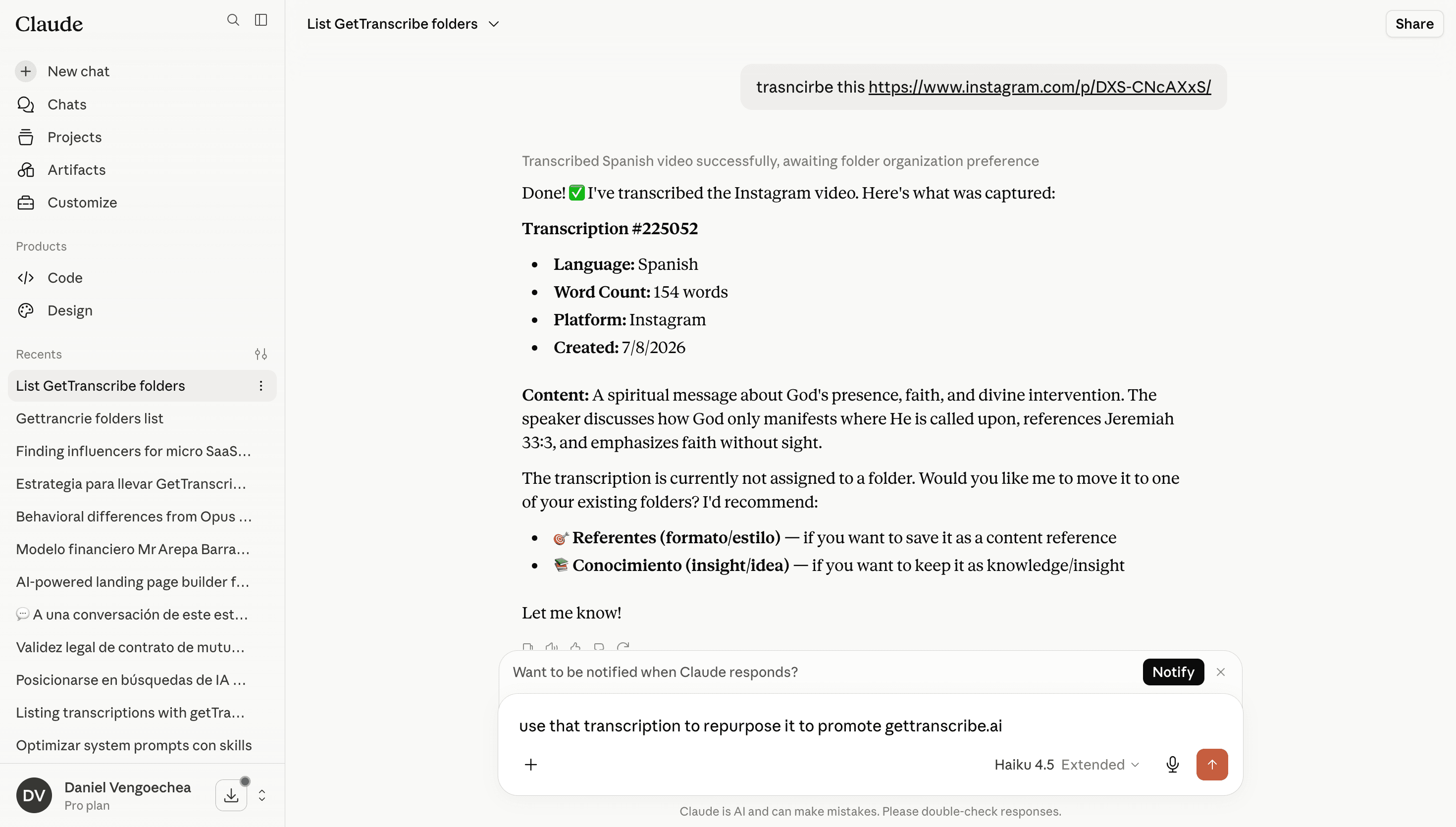
Claude can now call GetTranscribe directly through the Model Context Protocol (MCP). Paste a video link into your Claude conversation, ask it to transcribe, and the full text comes back in the same thread — ready to summarize, translate, or turn into your next piece of content.
This guide walks through connecting the GetTranscribe MCP server to Claude.ai, Claude Desktop, or any other MCP-compatible client.
What You Can Do with Claude + GetTranscribe
Transcribe Videos Instantly
Share an Instagram, TikTok, YouTube, or Facebook video URL with Claude and ask it to transcribe. Get accurate text back in the same conversation.
AI-Powered Content Analysis
Let Claude analyze a transcript, extract hooks and storytelling structures, and help you draft your own version of a video.
Search Your Library
Ask Claude to find, list, or recap past transcriptions from your GetTranscribe account through natural conversation.
Keep Everything Organized
Have Claude file new transcriptions into folders by project or client, so your library stays organized without manual work.
Setup Guide
Get Your GetTranscribe API Key
You'll need a GetTranscribe account and an API key to authenticate the connection.
How to get your API key:
- Log into your GetTranscribe dashboard
- Follow the API key guide to generate your key
- Create a new API key (name it "Claude" for easy identification)
- Copy the generated key (starts with gtr_)
- Keep it safe — you'll enter it once in the next step
Connect Claude.ai (Web)
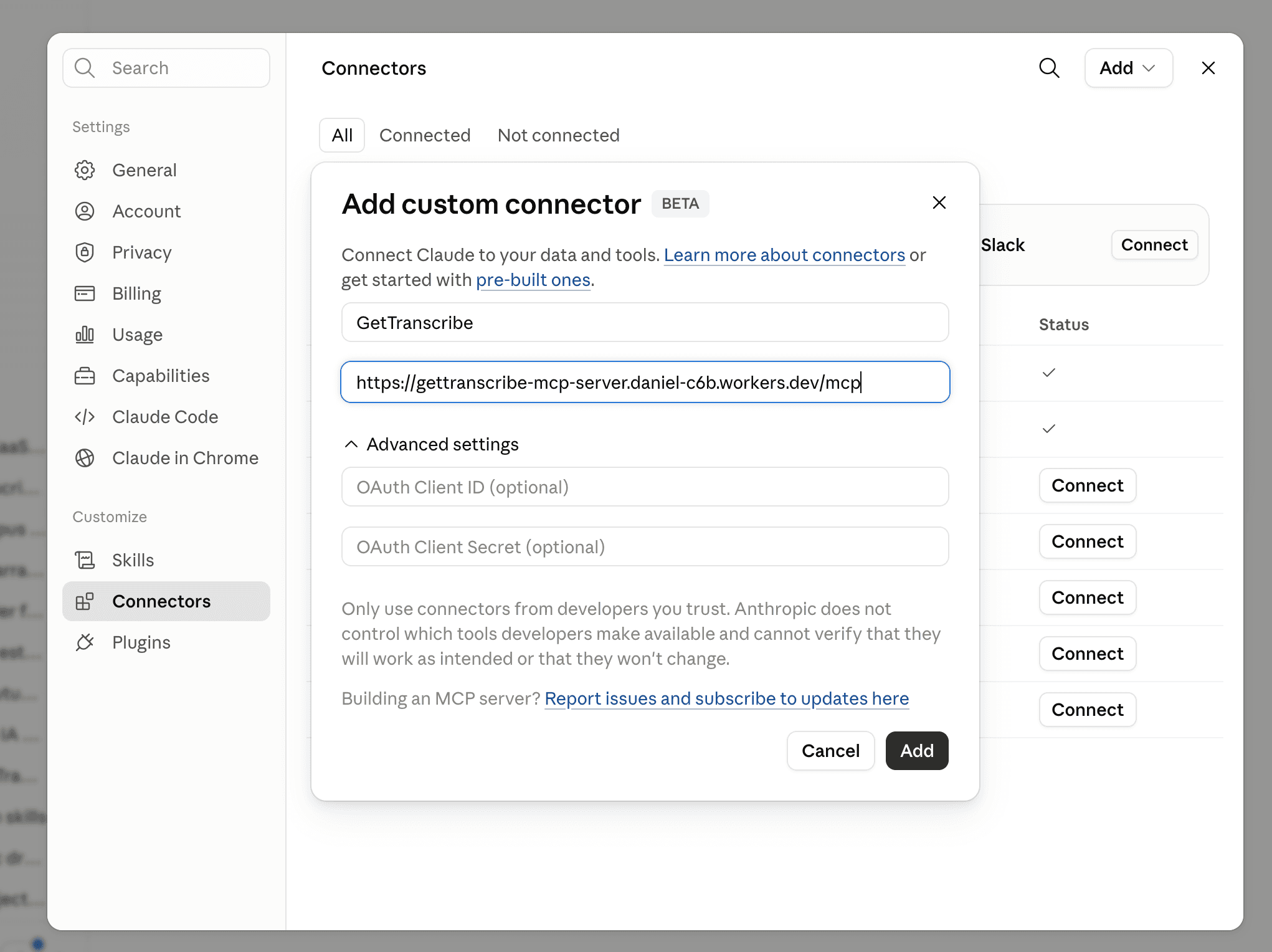
Add GetTranscribe as a custom connector from the Claude.ai settings.
Add the MCP connector:
- In Claude.ai, go to Settings → Connectors
- Click Add, then Add custom connector
- Name it GetTranscribe and paste the MCP server URL: https://mcp.gettranscribe.ai/mcp
- Click Add — leave OAuth Client ID and Secret empty, they are not needed
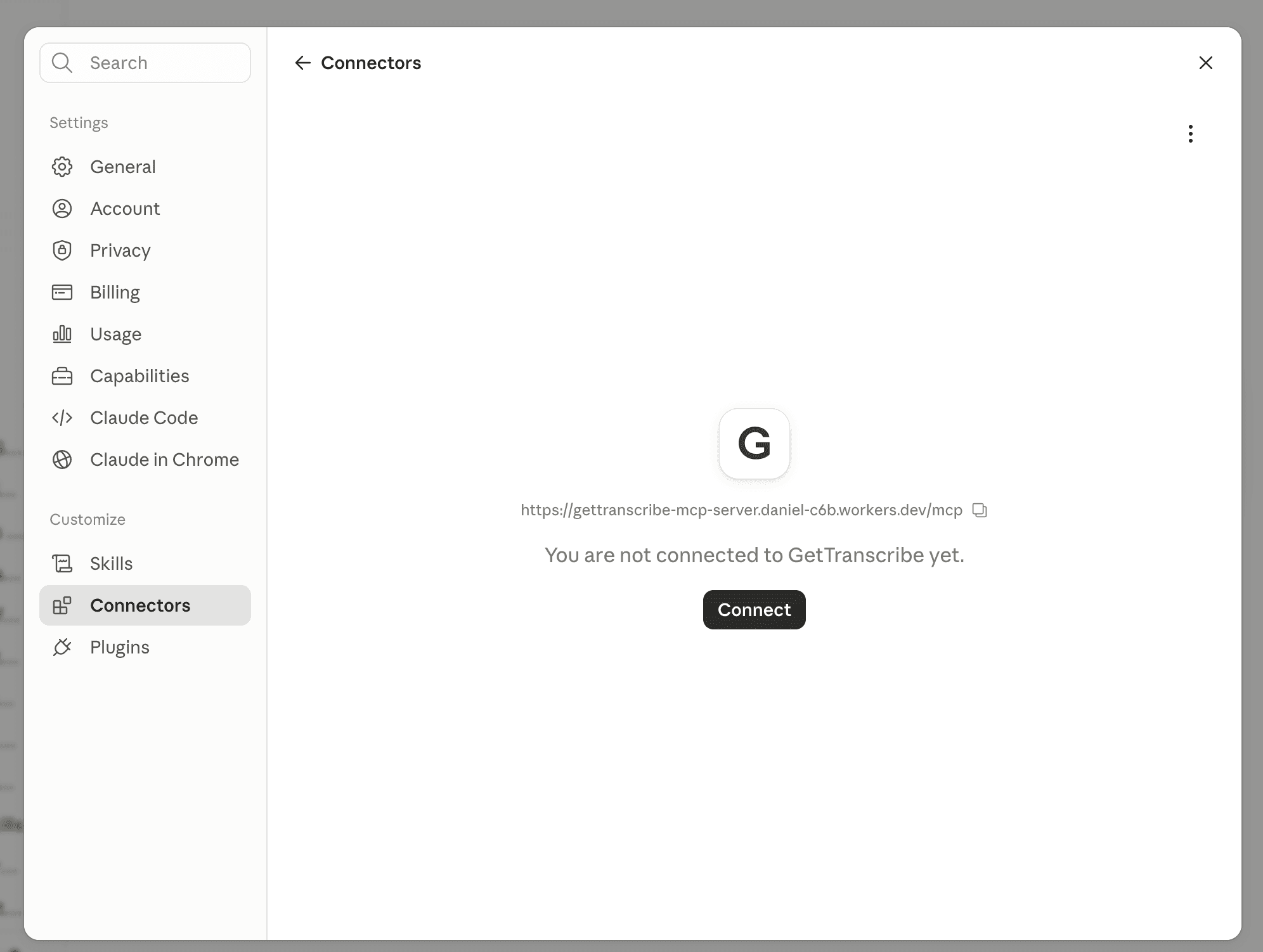
Connect and authorize:
- Open the new GetTranscribe connector and press Connect
- Claude opens the GetTranscribe consent page in your browser
- Enter your API key (gtr_...) and press Authorize
- You're redirected back to Claude with the connector active. An OAuth 2.1 token is issued automatically, so you only authenticate once
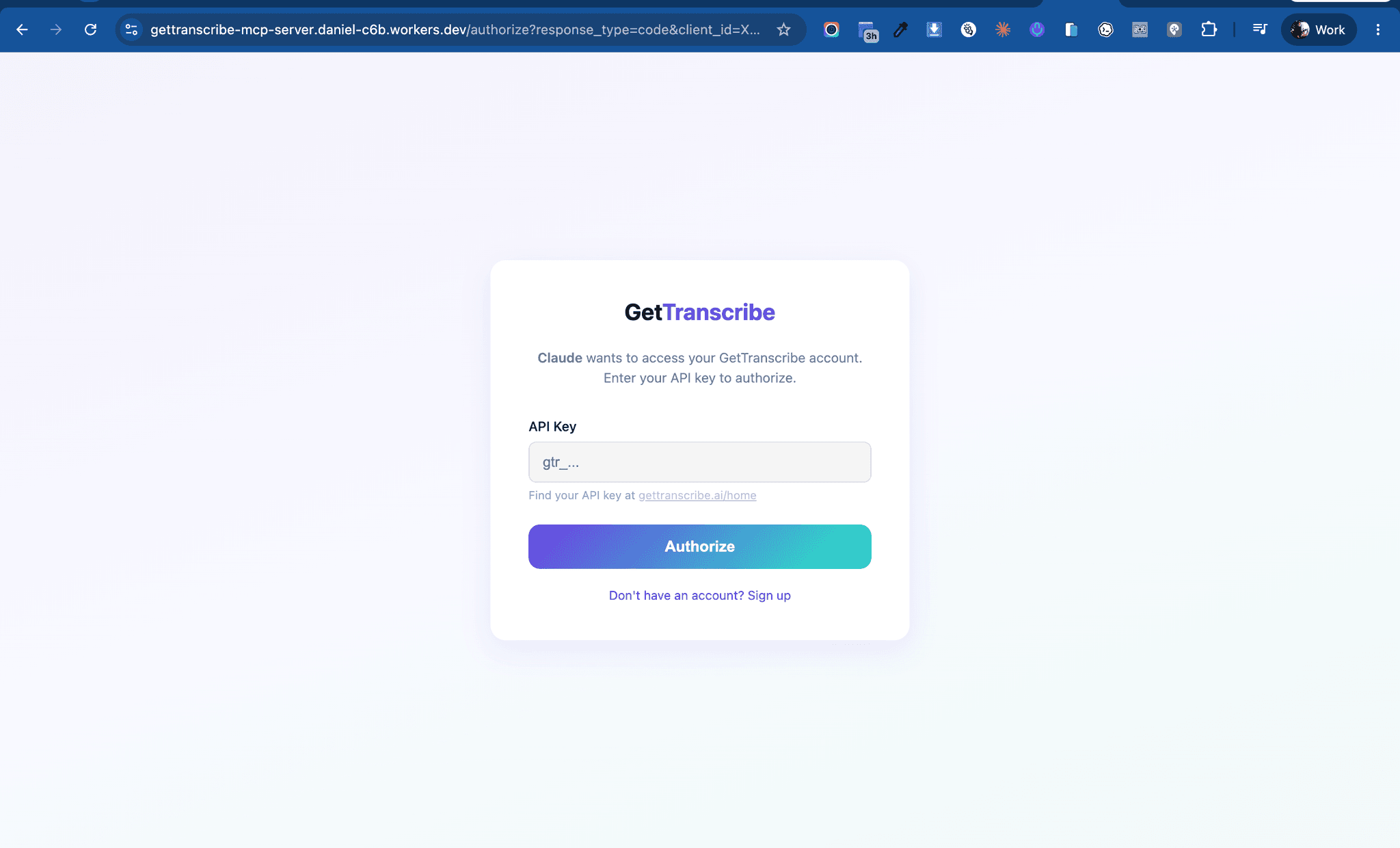
✓ Success! Once connected, Claude can call GetTranscribe tools automatically whenever it needs them in a conversation. Complete the authorization in the same browser where you started it — the consent link expires after 10 minutes and only works once.
Claude Desktop & Mobile Work Automatically
Custom connectors are linked to your Claude account, not a single device. Once you add GetTranscribe on Claude.ai, it's also available in Claude Desktop and the Claude mobile apps.
Adding it from Claude Desktop instead:
- Open Claude Desktop and go to Settings → Connectors
- Click Add custom connector and paste the same MCP server URL
- Complete the authorization with your API key, exactly like on the web
Heads up: do not add the server URL to claude_desktop_config.json. That file only supports local MCP servers — remote connectors must be added through Settings → Connectors.
Start Transcribing Inside Claude
You're all set. Paste a video URL and ask Claude to transcribe it.
Example prompts to try:
"Transcribe this Instagram reel: [URL] and summarize the key points"
"List all my transcriptions from the last 7 days"
"Create a folder called "Competitor Research" and transcribe this TikTok video into it"
"Get transcription #12345 and rewrite it as a LinkedIn post"
Available MCP Tools
Once connected, Claude has access to these GetTranscribe tools and decides on its own when to use them based on your request.
gettranscribe_create_transcriptionCreate a Transcription
Give Claude a video URL from Instagram, TikTok, YouTube, or Facebook and it starts a new transcription for you.
gettranscribe_get_transcriptionGet a Transcription
Ask Claude to pull up any past transcription by its ID, including the full text and metadata.
gettranscribe_list_transcriptionsList & Search Transcriptions
Have Claude search or list your transcription history so you can find what you transcribed last week in seconds.
gettranscribe_create_folderCreate a Folder
Ask Claude to create a new folder to keep related transcriptions organized by project, client, or topic.
gettranscribe_get_folderGet a Folder
Retrieve the details and contents of a specific folder without opening the GetTranscribe dashboard.
gettranscribe_list_foldersList Folders
Let Claude list all your folders so it can file new transcriptions in the right place automatically.
Frequently Asked Questions
What is MCP (Model Context Protocol)?
MCP is an open standard that lets AI assistants like Claude call external tools during a conversation. GetTranscribe runs an MCP server that exposes transcription and folder tools, so Claude can transcribe a video and use the result as context without you leaving the chat.
Is connecting GetTranscribe to Claude secure?
Yes. The connection uses OAuth 2.1. You enter your GetTranscribe API key once on a consent page, GetTranscribe issues a scoped access token, and Claude stores it securely for future requests. You do not paste your API key into every conversation.
Which video platforms are supported?
Instagram, TikTok, YouTube, and Facebook are supported through the MCP tools, the same platforms GetTranscribe supports everywhere else.
Does transcribing through Claude cost extra credits?
No extra cost. Transcriptions created through Claude use your existing GetTranscribe plan and credit balance, exactly like transcribing from the web app or API.
Which Claude clients work with GetTranscribe?
Claude.ai in the browser, Claude Desktop, and any other MCP-compatible client that supports remote MCP servers over HTTP.
Where do I get my GetTranscribe API key?
Sign in to your GetTranscribe dashboard and generate a key from the API section. Keys start with gtr_. You'll need a GetTranscribe account to get one.
Ready to Supercharge Your Claude?
Get your GetTranscribe API key and connect it to Claude in minutes. No coding required.
5-minute setup • Authenticate once • Works with all supported platforms